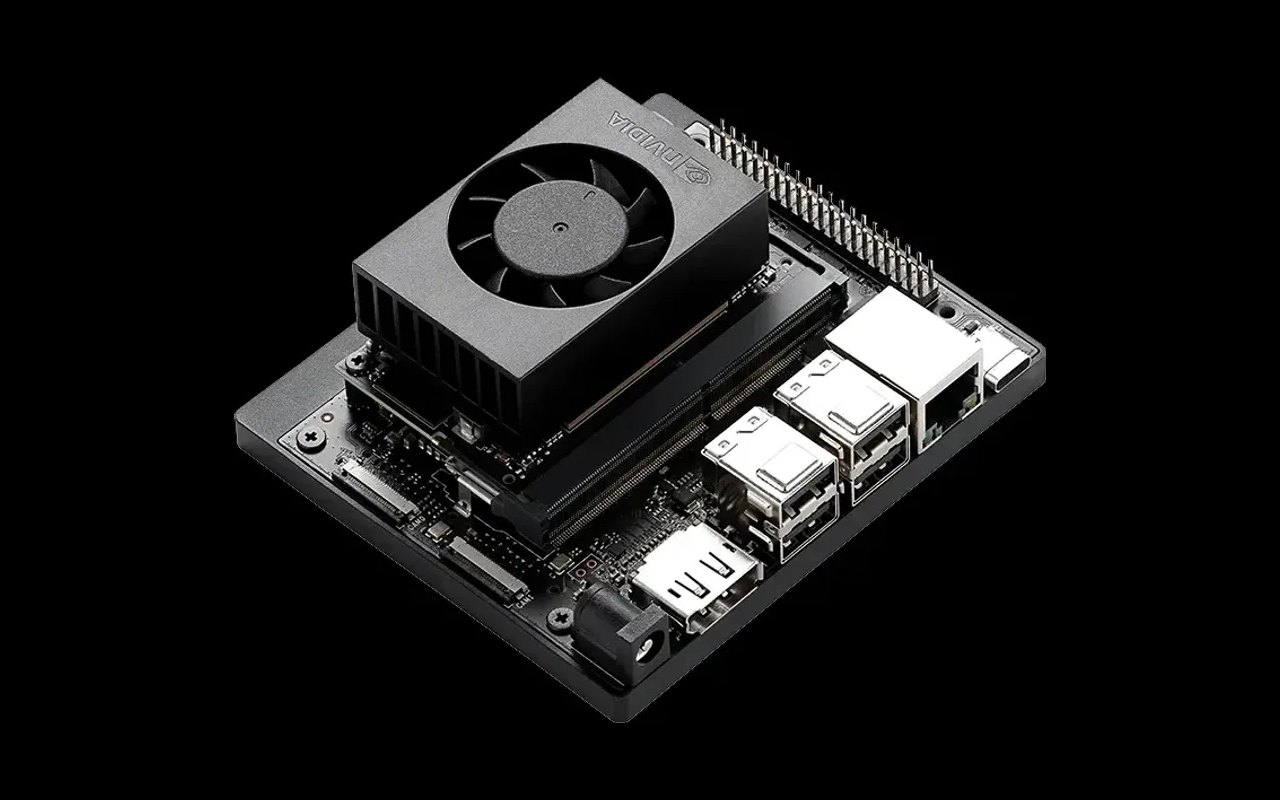
The Jetson Orin Nano Super Developer Kit is the most accessible entry point to NVIDIA-powered edge AI development. At $249, it delivers 67 TOPS of AI performance, enough to run generative AI models locally. But getting from unboxing to running your first AI model requires a few careful steps.
This guide walks you through the complete setup process: hardware preparation, OS installation, software configuration, and running your first AI inference model.
What's in the Box
- Jetson Orin Nano 8GB module (pre-mounted on carrier board)
- Reference carrier board with all I/O exposed
- Power supply (DC, 5.5mm × 2.5mm jack)
- Quick start guide
You'll also need: A microSD card (64GB+ recommended, UHS-I or faster), a USB keyboard and mouse, a DisplayPort monitor (or DP-to-HDMI adapter), and an Ethernet cable for initial setup.
Step 1: Prepare the microSD Card
The Jetson Orin Nano boots from a microSD card (or NVMe SSD for better performance). Start with the microSD approach for initial setup.
- Download the latest JetPack SDK image from developer.nvidia.com/embedded/jetpack
- Flash the image to your microSD card using Etcher (balenaetcher.io) or the
ddcommand on Linux - Insert the flashed microSD card into the slot on the underside of the developer kit
Step 2: Connect and Power On
- Connect your DisplayPort monitor
- Connect USB keyboard and mouse to any of the 6 USB 3.2 ports
- Connect Ethernet for internet access
- Connect the power supply, the system boots automatically
The first boot takes 2-3 minutes. You'll see the NVIDIA logo, then the Ubuntu desktop setup wizard.
Step 3: Initial Configuration
- Accept the NVIDIA license agreement
- Choose your language, timezone, and keyboard layout
- Create your username and password
- Let the system complete its initial configuration (this may take several minutes)
Once you reach the Ubuntu desktop, open a terminal and verify your setup:
# Check JetPack version
cat /etc/nv_tegra_release

# Verify GPU is recognized
nvidia-smi

# Check CUDA installation
nvcc --version
Step 4: Update the System
sudo apt update && sudo apt upgrade -yThis ensures you have the latest security patches and driver updates.
Step 5: Install AI Frameworks
JetPack comes with CUDA, cuDNN, and TensorRT pre-installed. For Python-based AI development, install the Jetson-optimized versions:
# Install pip if not present
sudo apt install python3-pip -y

# Install PyTorch (Jetson-optimized wheel)
# Check developer.nvidia.com/embedded for the latest URL
pip3 install --upgrade torch torchvision

# Install ONNX Runtime with TensorRT provider
pip3 install onnxruntime-gpu
Step 6: Run Your First AI Model
Let's run a simple image classification model using TensorRT for optimized inference:
# Clone NVIDIA's Jetson inference examples
git clone --recursive https://github.com/dusty-nv/jetson-inference
cd jetson-inference
mkdir build && cd build
cmake ..
make -j$(nproc)
sudo make install

# Run image classification on a sample image
imagenet --input images/orange_0.jpg --output output.jpg
This downloads a pre-trained image classification model, optimizes it with TensorRT, and runs inference on a sample image. You should see the classification result in your terminal and the annotated image saved as output.jpg.
Step 7: Try Real-Time Camera Inference
Connect a USB camera and run real-time object detection:
detectnet /dev/video0This launches a real-time object detection stream using the SSD-Mobilenet model, optimized with TensorRT. You should see bounding boxes around detected objects in the camera feed.
Optional: Upgrade to NVMe Storage
For production workloads, the microSD card becomes a bottleneck. Install an NVMe SSD in the M.2 Key M slot for dramatically faster storage:
- Power off the developer kit
- Install an M.2 2280 NVMe SSD in the Key M slot
- Boot from microSD, then use the NVIDIA SDK Manager or
ddto clone your system to the NVMe drive - Update the boot configuration to boot from NVMe
Next Steps
Now that your Orin Nano is running, explore these resources:
- NVIDIA Jetson AI Lab: Pre-built containers for LLMs, VLMs, and generative AI on Jetson
- TensorRT: Optimize your custom models for maximum inference throughput
- DeepStream SDK: Build multi-stream video analytics pipelines
- Isaac ROS: Robotics-specific AI acceleration packages
Ready to take your edge AI project further? Contact us for module selection, carrier board recommendations, and production deployment guidance.